

Set your limits,
use your phone intentionally.
The average person spends more than 3 hours a day on their phone – much of it unintentional.
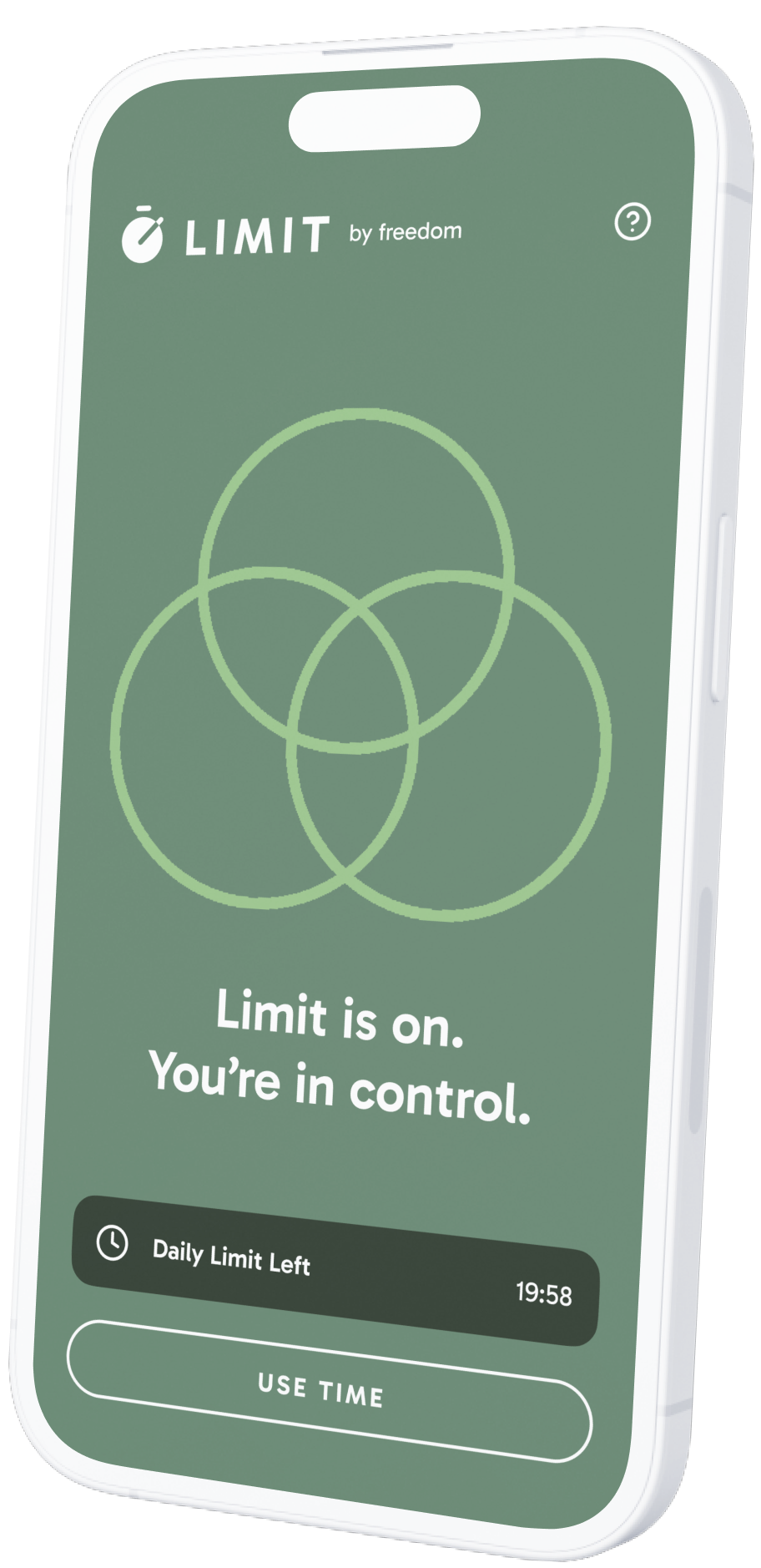
Limit helps you set mindful time boundaries on the apps you love, so you enjoy them when you choose and block them when it’s time to focus.

Available now!
Get this FREE app in the App Store

Set your boundaries once, then go live your life.
Step 1
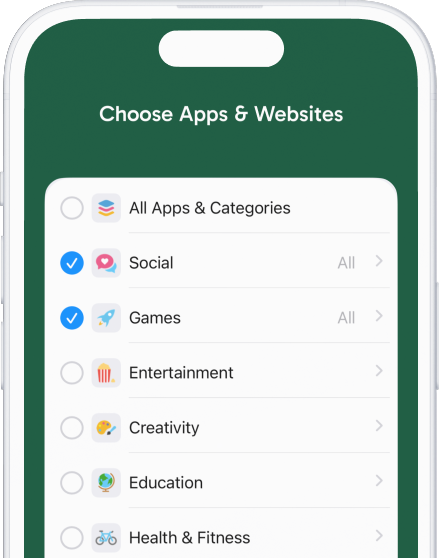
Choose Your Distractions
Select the apps and sites
that pull you off course.
Step 2
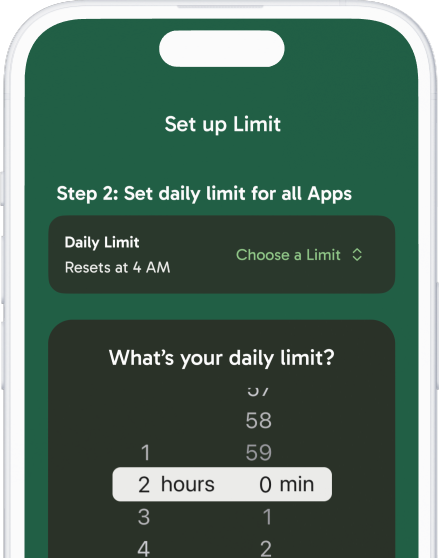
Set Your Daily Limit
Decide how much time you want to allow for those distractions.
Step 3
Enable Limit
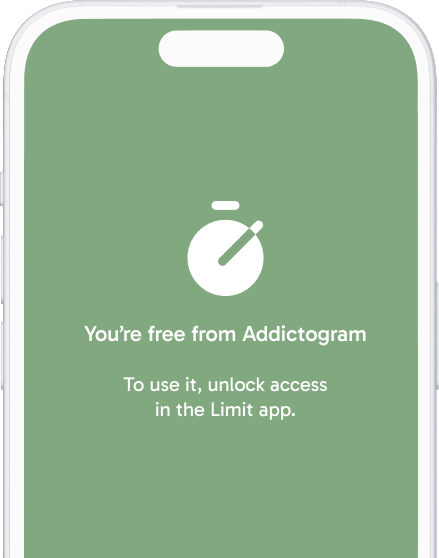
Your distractions are blocked by default. Spend your limit to access them.

Inspired by Millions of Freedom Users
“This app changed my relationship with my phone.”
〰️〰️
“I’ve gotten back hours of my day.”
〰️〰️
“Finally something that helps me stay off social media without judgment.”
〰️〰️
“Literally saved my life.”
〰️〰️
“This app changed my relationship with my phone.” 〰️〰️ “I’ve gotten back hours of my day.” 〰️〰️ “Finally something that helps me stay off social media without judgment.” 〰️〰️ “Literally saved my life.” 〰️〰️
Limit was created by the team behind Freedom – trusted by people in 190+ countries to block distractions and focus on what matters most.


Built on Behavioral Science, Designed
for Peace
Limit helps you change your relationship with your phone – not by demanding attention, but by giving it back.
Once you set up Limit, it runs quietly in the background. You don’t need to open or pay attention to it unless you want to change your settings..
When you choose to use a distracting app, you decide how much of your daily time budget to spend. That simple act creates awareness – and awareness builds new habits.
Because the time you spend is finite, you naturally use it more thoughtfully. When it’s gone, you return to focus mode with calm and clarity.
Over time, you reclaim more than your attention. You reclaim your values.


Now Available. For Free
Download on the App Store. Android coming soon.

Questions & Answers
-
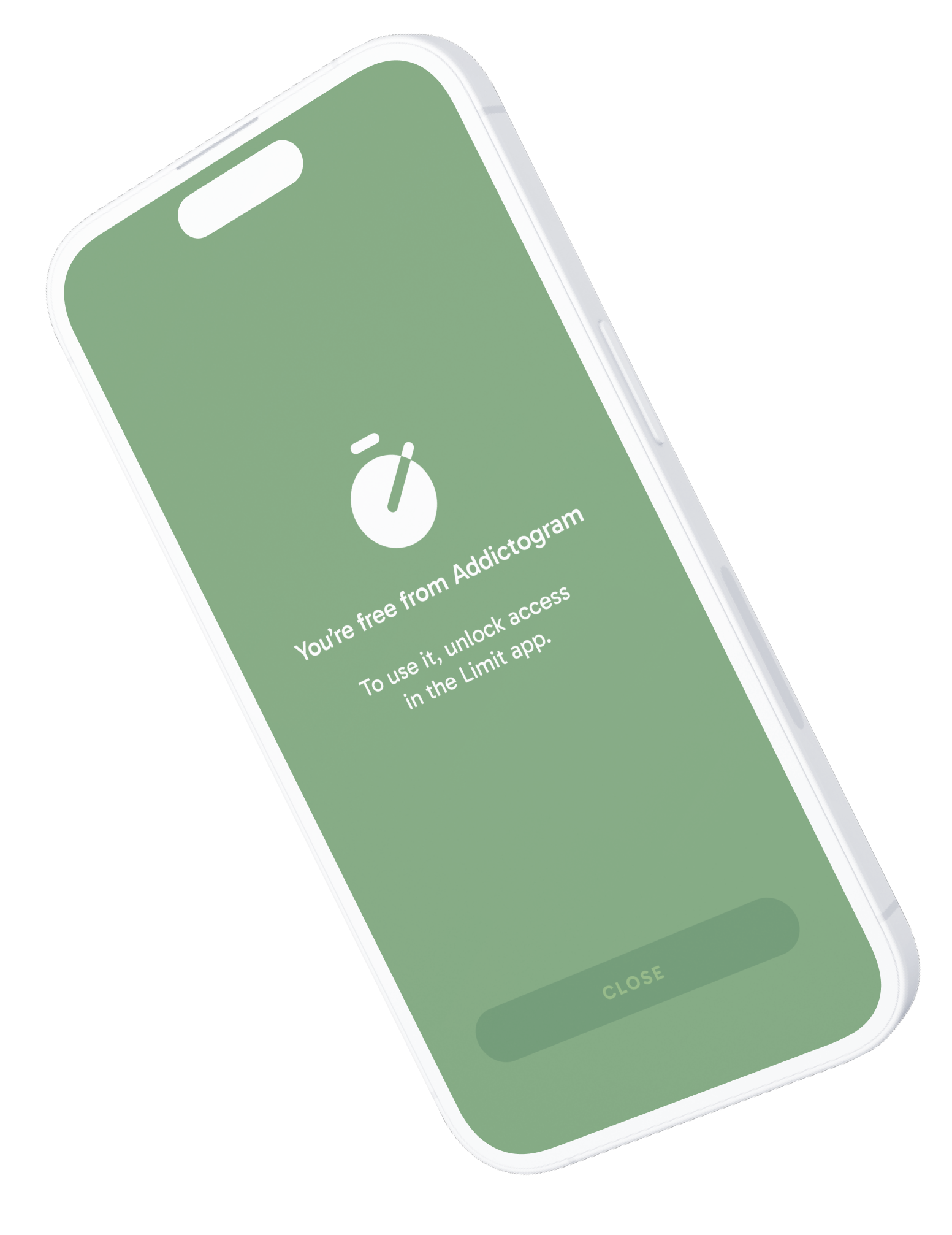
Once you enable Limit, it immediately blocks the apps and websites you’ve chosen. They stay blocked until you take a break
-
Yes! You can block apps, websites, or both. If you select a category (like “Social Media”), Limit automatically includes everything in that category - for example, Instagram, Facebook, and similar sites.
-
To make changes to what you’re blocking, you’ll first need to take a break. Once your break starts, you’ll see the option to edit your selections - adding or removing apps, websites, or entire categories. When you resume your session, your updated choices will take effect.
-
If you restart your device, Limit will automatically reload your blocking settings so your focus stays consistent.
-
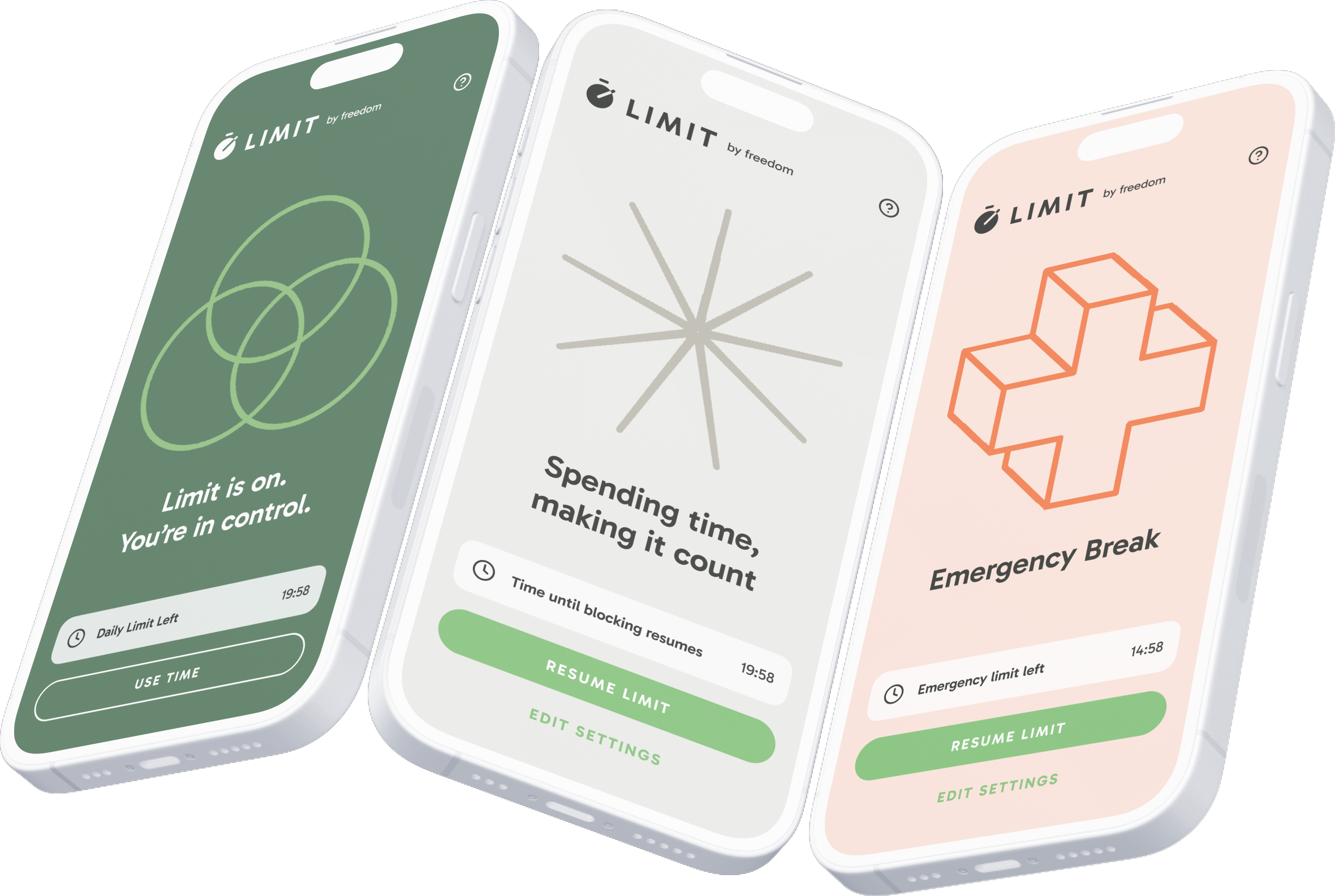
Tap “Use time” anytime during your session.
You’ll see a simple time picker that lets you choose how long your break should last.
Once your break time is up, Limit will automatically block your selected apps and websites again so you can get back on track.
-
Yes! If you decide you’re ready to get back to focus sooner, just open the Limit app and tap Back to Focus. Your break will end immediately, and Limit will re-block your selected apps and websites right away — no need to wait for the timer to finish.
Any time that you didn’t use will not be removed from your daily allowances.
-
Your available limit time resets automatically every day, giving you a fresh budget to use however you like. Resets occur at 4 AM local time.
-
Each day you have a budgeted amount of limit time.
Once you’ve used all of it, you won’t be able to access blocked apps or websites for the rest of the day — unless you use an Emergency Break.
-
The Emergency Break gives you a last-resort way to access blocked apps or websites after your daily break time is used up.
When you activate it, you’ll need to wait 100 seconds without closing the app for the pause to take effect.
This short waiting period is meant to give you a chance to reconsider — and hopefully continue your focus session instead of ending it early.
-
The Emergency Pause lasts for 15 minutes.
Once that time is up, Limit will automatically resume blocking your selected apps and websites.
-
You can pause blocking by using your available break time. During a break, you’ll be able to access apps and websites for the amount of time you choose.Once your break time runs out, your blocks will automatically resume.
After you’ve used all your daily break time, the Emergency Pause is the only option to lift blocking for the rest of the day.
-
Limit works with Apple’s Screen Time system, which allows up to 49 selected items at a time—usually enough to cover your main distractions.
If you run into this limit with your selections, we recommend using categories instead of selecting individual apps.
-
Limit uses Apple’s Screen Time data, so a few things are set by Apple:
Categories are predefined (no custom categories)
You can’t exclude a single app from a category
Websites only appear if Apple has categorized them
If you need more control, you can switch to selecting individual apps.
-
If you remove an app from a category, Apple converts the rest of that category into individual selections. That can increase your total count, but gives you more precise control.
-
On iOS versions prior to iOS 26, Screen Time can occasionally be less stable—especially on devices with many apps installed. Updating iOS (when available) can help improve this.
-
Fill out this form by clicking here and we’ll get back to you as soon as possible.
If you’re experiencing a crash or hang, enabling Share iPhone Analytics (and Share With App Developers, if available) can help us diagnose and improve things more quickly.